At a glance
- What changed
- An official connection between TradingView and compatible AI assistants.
- Who it affects
- Eligible paid TradingView users.
- When
- Announced September 16, 2026.
TradingView welcome offer and conditions ↓
What TradingView launched
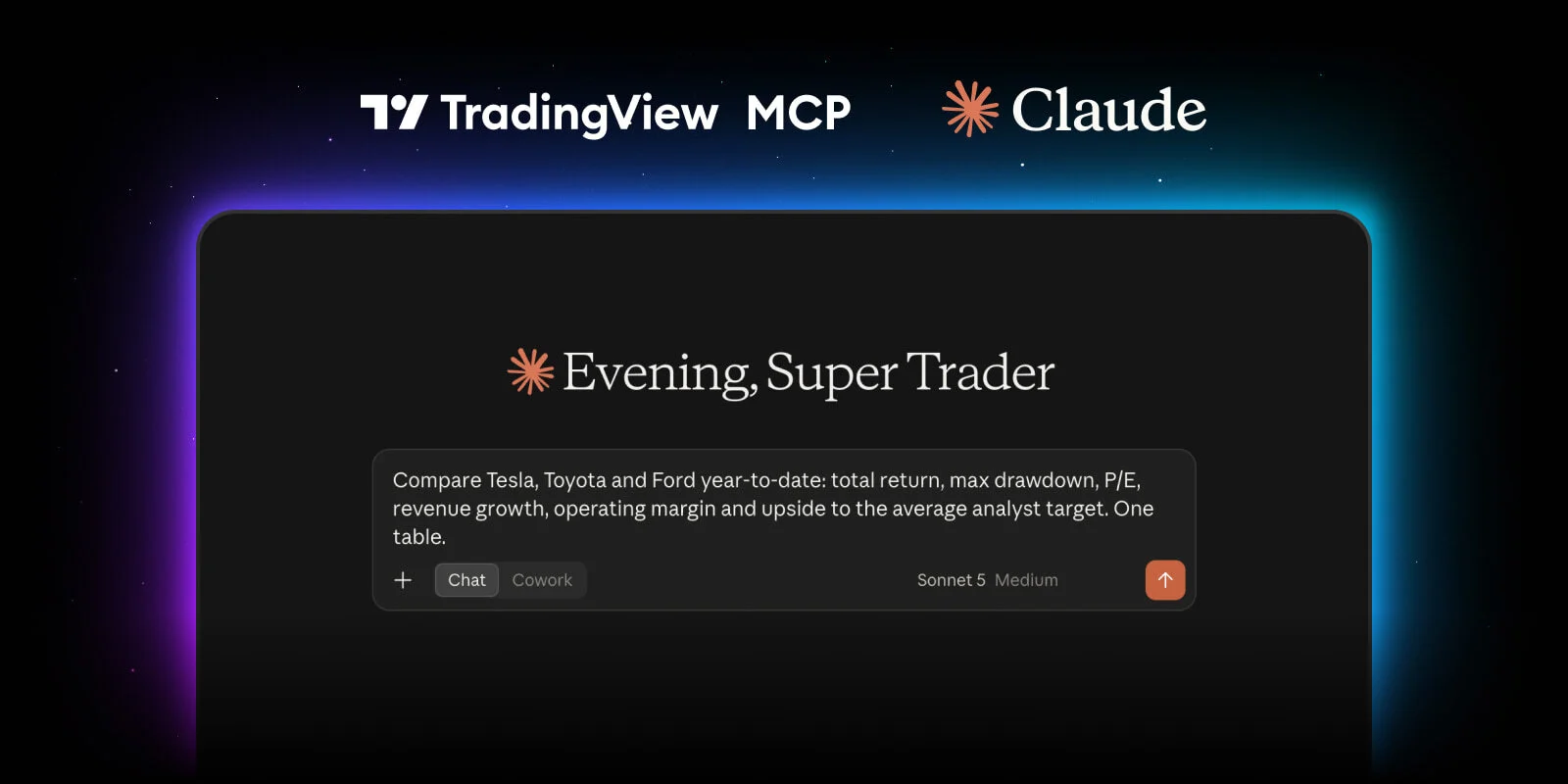
TradingView has launched an official MCP server connecting compatible AI assistants to its research and account tools. MCP is a standard for requesting tools from another service, rather than relying only on an assistant’s remembered information. The beta requires Essential or above. TradingView warns that market data is delayed and daily limits may apply.
The useful question is what this connection lets you check or change. Begin with a small, verifiable research task before asking an assistant to rearrange information in your account.
[1]Connecting an account and understanding permissions
The official setup page supplies the server address, https://mcp.tradingview.com/mcp, and describes signing in with a TradingView account through OAuth authorization. It excludes trial plans. A compatible client must support the specified connection and authentication method; its menus may differ from those in another assistant.
The documentation separates tools that retrieve information from tools that change an account. It includes symbol search, historical price bars, company data and document retrieval, alongside operations that create or remove watchlists and alerts. That distinction is worth making before a first task: reading a list and replacing a list are different instructions, even if both fit into one conversational request.
[2]A first research request that is easy to verify
For a practical starting exercise, choose two companies you already follow. Ask the assistant to identify their exchange-qualified symbols, retrieve the same reporting period for each, and return a small table with the company, period, value and source. Keep the first request narrow enough that you can compare its result with the original information yourself.
Imagine the answer shows revenue of 120 for Company A and 80 for Company B, but one figure covers a year and the other covers a quarter. Those invented numbers do not establish that A is the larger business over a comparable period. The first useful follow-up is to align the periods. Asking for an explanation before checking the inputs can produce a polished comparison built on incompatible figures.
You can make this exercise more precise without making it longer: request a separate “missing information” column and ask the assistant to leave unavailable values blank. A visible gap is easier to investigate than a number that looks plausible but has no supporting record. This is our suggested verification method, not a claim about a particular model’s behavior.
Review changes before asking the assistant to make them
Once a research result looks useful, a separate instruction can turn it into an account action. For example, first ask for a proposed five-symbol watchlist with a short reason for each inclusion. Review the names and the exchange attached to each symbol. Only then ask for the reviewed list to be created with a distinctive name.
Use the same separation for an alert. Write the intended symbol, threshold and notification purpose in one sentence. “Tell me when this reaches 50” is ambiguous if several instruments were discussed earlier. A precise request avoids making the assistant guess which object you meant. The number 50 here is an example threshold, not a suggested entry point or a market forecast.
After a change, inspect the resulting list or alert in TradingView. This gives you a concrete object to compare with the request, rather than treating a conversational confirmation as the entire check. If the object is wrong, describe the exact difference before requesting a correction.
What to assess during the beta
For your own trial, record whether the connection saved steps, whether the returned periods and symbols were correct, and how often you had to repair the request. Those observations are more useful than judging the feature by one impressive answer. Start with work that is straightforward to check, then expand only when the results remain consistent.
The examples below compare mismatched reporting periods and missing values in a research response. They do not connect your account or run a tool. The TradingView offer further down the page concerns access to the service; evaluate it separately from the accuracy of any research result. A discount can change subscription cost, but it cannot validate an assistant’s conclusion.
Check an AI research request
Choose an illustrative case to follow the explanation.
- Mixed periods
Align the periods first
An annual value of 120 and a quarterly value of 80 do not establish a like-for-like comparison.
- Missing values
Keep the gap visible
Leave an unavailable value blank and identify what information would be needed to complete the comparison.
Original learning exercise; no live market data or account action.
- The launch is a beta; review the returned data and any proposed account changes.
Official sources & further reading
Independently written from the primary sources below. Checked on 26 September 2026.
- Bring TradingView to Claude with the new MCP Server: public beta available for paid plans ↗Announcement · 16 September 2026
- Official MCP setup and tool documentation ↗Official product documentation
30-day trial + $15 first-plan coupon
New-user eligibility applies. No code needed; check renewal pricing and coupon terms.
Permanent partner link. Campaign dates and benefits are separate.
We may earn a commission, at no extra cost to you. Account and country conditions apply.